


Bulk Portfolio Uploader Plugin for Squarespace
Import your entire portfolio in minutes - not hours!
The Bulk Portfolio Uploader Plugin lets you push up to 60 portfolio items into any Squarespace 7.1 collection from a single spreadsheet. No more clicking. No more copy-pasting. No more wasted afternoons.
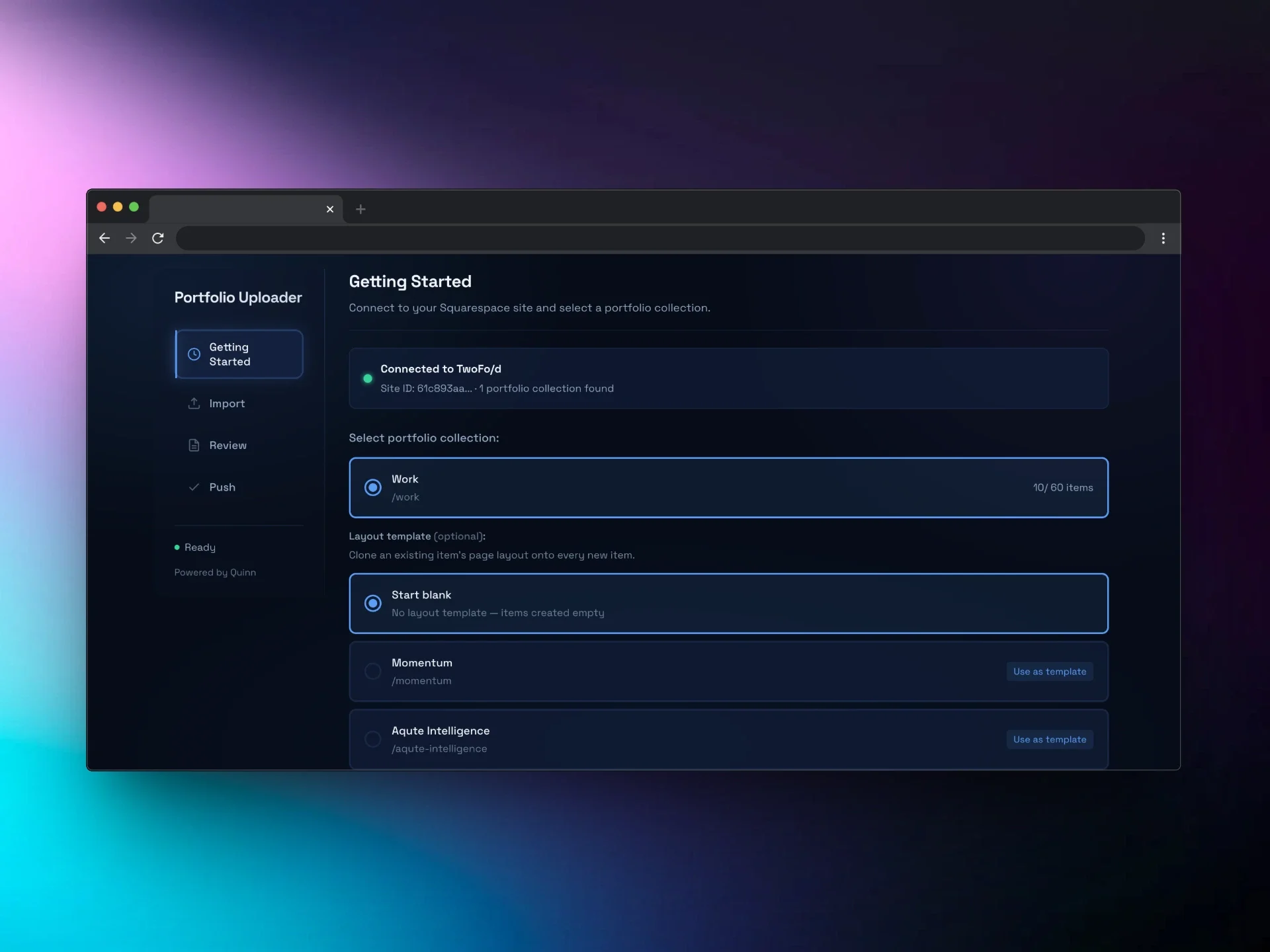
Import up to 60 portfolio items in seconds. Upload a CSV or spreadsheet, map your fields, and push everything to your Squarespace portfolio collection in one go.
One-time purchase · No subscription · Unlimited Squarespace sites
If you’ve ever had to manually create 20, 30, or 50+ portfolio items in Squarespace, you know the drill. Click. Type. Save. Repeat. It’s tedious, error-prone, and eats into the time you should be spending on design.
Squarespace doesn’t offer a native bulk upload for portfolio collections. So you’re stuck doing it the slow way - unless you have the right tool.
Everything included for £15
The Bulk Portfolio Uploader tool (runs inside your Squarespace admin)
Simple one-line code snippet installation
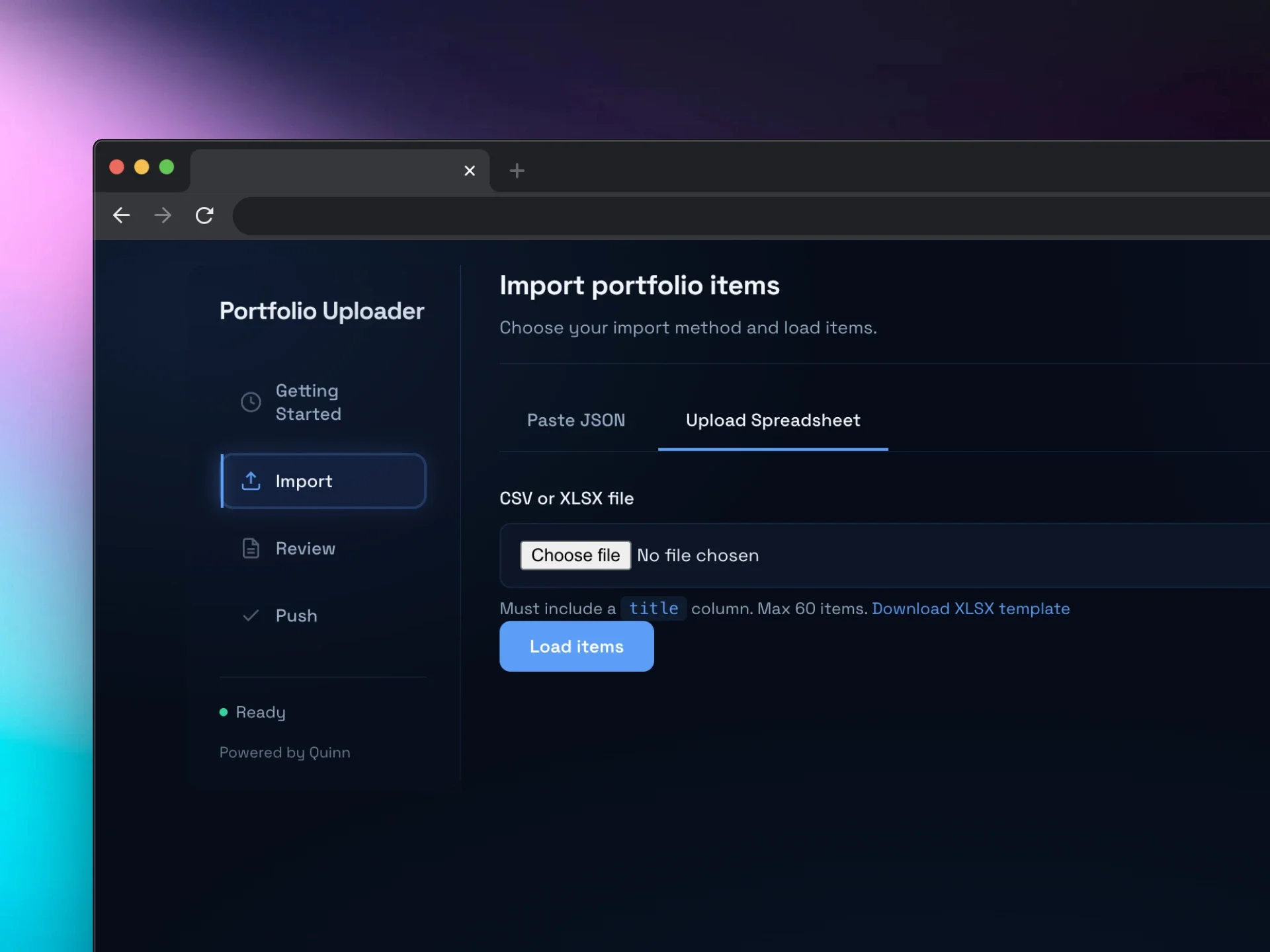
CSV, Excel, and JSON import support
Downloadable Excel template with headers and example data
Smart field mapping, validation, and error checking
Layout template cloning
Works with any Squarespace 7.1 site on any plan
A few things to know before you buy
Squarespace 7.1 only
This tool is built specifically for Squarespace 7.1 portfolio collections. It won’t work on Squarespace 7.0 or other platforms.
60-item limit per collection
This is a Squarespace platform limit, not a tool limit. The uploader shows you exactly how many slots are available.
Metadata only
The tool imports titles, descriptions, slugs, dates, and statuses. Images and page content need to be added in the Squarespace editor after import.
Runs in your browser
The tool runs inside your Squarespace admin session. Nothing is sent to any external server.
One-time purchase · No subscription · Unlimited Squarespace sites · Works on any Squarespace 7.1 plan
Sound familiar?
Your client sends over a spreadsheet with 40 projects. “Just add these to the portfolio.”
So you open the Squarespace editor. Create item. Type the title. Paste the description. Set the slug. Choose a date. Click save. Open the next one.
Forty times.
By item twelve, you’re questioning your career choices. By item thirty, you’re Googling “Squarespace bulk upload portfolio” and finding nothing useful.
That’s because Squarespace doesn’t have one. Until now.
Meet the Bulk Portfolio Uploader Plugin
Upload your portfolio data in seconds. The tool imports titles, descriptions, slugs, dates, and statuses, applies an existing portfolio page as a template, and lets you finish by adding images and page content in the Squarespace editor.
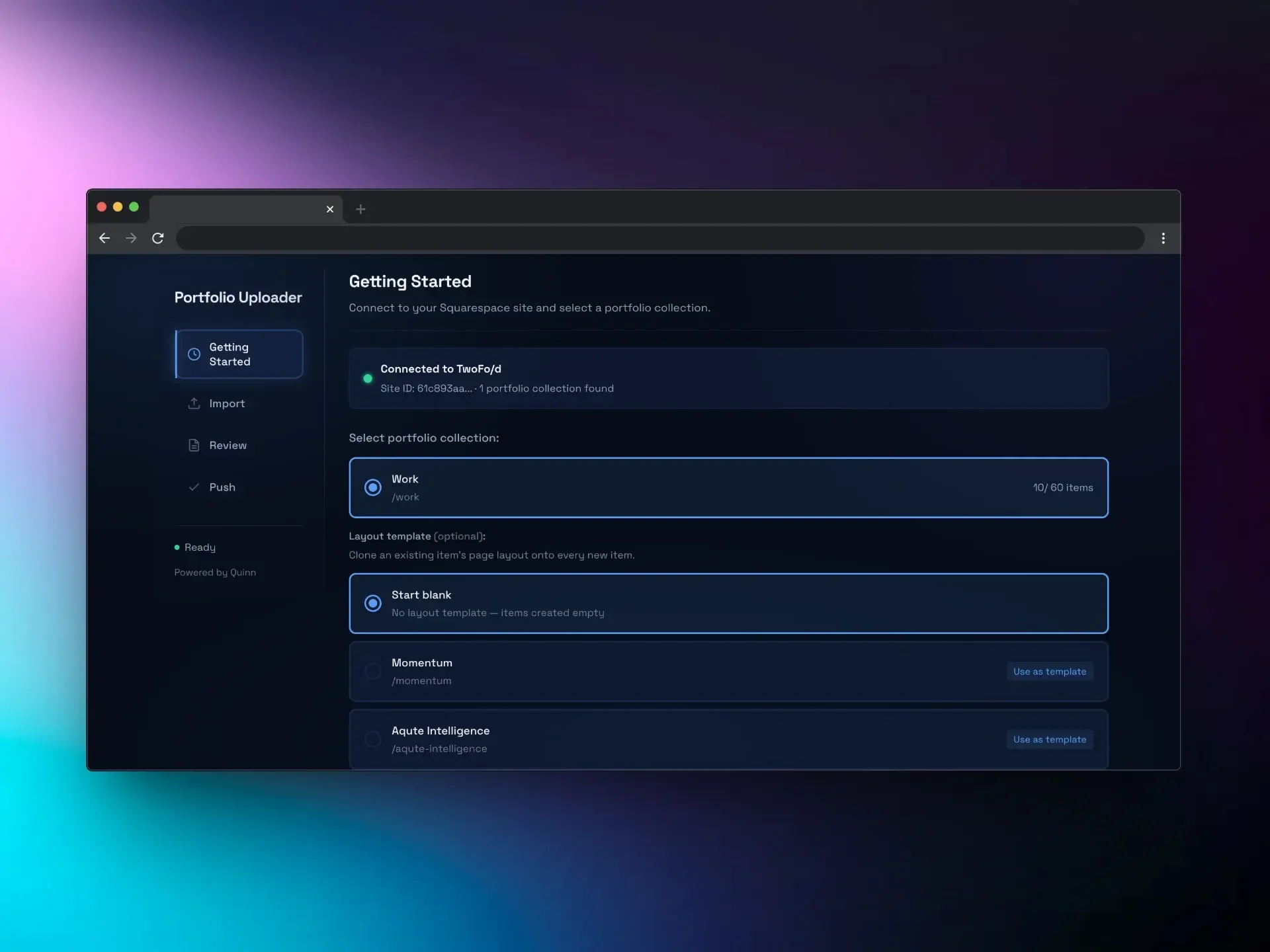
Import up to 60 portfolio items in seconds. Upload a CSV or spreadsheet, map your fields, and push everything to your Squarespace portfolio collection in one go.
One-time purchase · No subscription · Unlimited Squarespace sites
If you’ve ever had to manually create 20, 30, or 50+ portfolio items in Squarespace, you know the drill. Click. Type. Save. Repeat. It’s tedious, error-prone, and eats into the time you should be spending on design.
Squarespace doesn’t offer a native bulk upload for portfolio collections. So you’re stuck doing it the slow way - unless you have the right tool.
Everything included for £15
The Bulk Portfolio Uploader tool (runs inside your Squarespace admin)
Simple one-line code snippet installation
CSV, Excel, and JSON import support
Downloadable Excel template with headers and example data
Smart field mapping, validation, and error checking
Layout template cloning
Works with any Squarespace 7.1 site on any plan
A few things to know before you buy
Squarespace 7.1 only
This tool is built specifically for Squarespace 7.1 portfolio collections. It won’t work on Squarespace 7.0 or other platforms.
60-item limit per collection
This is a Squarespace platform limit, not a tool limit. The uploader shows you exactly how many slots are available.
Metadata only
The tool imports titles, descriptions, slugs, dates, and statuses. Images and page content need to be added in the Squarespace editor after import.
Runs in your browser
The tool runs inside your Squarespace admin session. Nothing is sent to any external server.
One-time purchase · No subscription · Use it on as many sites as you want
Upload CSV, Excel or JSON
A lightweight tool that runs right inside your Squarespace admin. Upload a CSV, Excel file, or paste JSON, and push every item to your portfolio collection in one go.
No external apps. No API keys. No developer setup. Just paste a single code snippet, load your data, and push.
What’s included
✓ Bulk Portfolio Uploader tool
✓ One-line code snippet installation
✓ Import using CSV, Excel or JSON
✓ Downloadable Excel template
✓ Smart field mapping & validation
✓ Layout template cloning
✓ Works on any Squarespace 7.1 plan
✓ Use on unlimited sites
Built for speed and accuracy
01
Smart Field Mapping
Automatically recognises common column names like “title”, “slug”, “description”, “excerpt”, “publish_date” and maps them to the right Squarespace fields.
02
Validation Before You Push
Every item is checked for missing titles, duplicate slugs, invalid dates, and title length. Errors and warnings are flagged before anything touches your live site.
03
Collection Picker
Auto-discovers all your portfolio collections and shows a live slot counter. You always know exactly how many items you can add (max 60 per collection).
04
Bulk Selection & Deletion
Select individual items, use Select All, or Shift+Click to select a range. Delete selected items in one action.
05
Layout Templates
Clone an existing portfolio item’s page layout onto every new item. Set up one template, apply it to all.
06
Draft or Published
Set all items to Draft or Published in one click, or control each item individually.
07
Date Staggering
Items with the same date are automatically staggered by one minute so they maintain your intended order in the CMS.
08
Progress Tracking
A live push log shows you exactly what’s happening - success, failure, item by item.
Without Bulk Portfolio Uploader Plugin
30–60 minutes per 20 items
Manual slug creation (typos guaranteed)
No validation - errors found after publish
One item at a time, no bulk actions
Copy-paste layout for every item
No idea how many slots are left
With Bulk Portfolio Uploader Plugin
2–3 minutes per 60 items
Auto-generated slugs from titles
Every item validated before push
Select all, shift+click range, bulk status
Clone a template layout to all items at once
Live slot counter per collection
Squarespace allows for up to 60 items in a collection.
Built by a Squarespace designer, for Squarespace designers
This tool was built by Dave at Squarehead, a Squarespace expert who got tired of adding portfolio items manually and decided to fix it.
It uses the same Squarespace APIs that power the editor itself. Nothing leaves your browser. Nothing touches an external server. Your data stays between you and your Squarespace site.

How it works

Step 1
Paste the code snippet
Add one Code Block to a Squarespace page. Paste in the loader script. The tool loads instantly.

Step 2
Load your spreadsheet
Upload CSV or Excel, or paste JSON. Columns are auto-mapped. Every item is validated for missing data, duplicate slugs, and title length.

Step 3
Choose your collection
Pick the portfolio collection. The tool shows you how many items already exist and how many slots are available. No guesswork.

Step 4
Push and done
Review the checklist, hit push. Titles, descriptions, slugs, dates, statuses, and layouts are all applied. The page auto-refreshes when it’s finished.

Install the plugin to import your entire portfolio in minutes instead of hours
Your next portfolio build doesn’t have to be painful. The Bulk Portfolio Uploader Plugin pays for itself the first time you use it. One spreadsheet. One push. Done.
Import up to 60 portfolio items in seconds. Upload a CSV or spreadsheet, map your fields, and push everything to your Squarespace portfolio collection in one go.
One-time purchase · No subscription · Unlimited Squarespace sites
If you’ve ever had to manually create 20, 30, or 50+ portfolio items in Squarespace, you know the drill. Click. Type. Save. Repeat. It’s tedious, error-prone, and eats into the time you should be spending on design.
Squarespace doesn’t offer a native bulk upload for portfolio collections. So you’re stuck doing it the slow way - unless you have the right tool.
Everything included for £15
The Bulk Portfolio Uploader tool (runs inside your Squarespace admin)
Simple one-line code snippet installation
CSV, Excel, and JSON import support
Downloadable Excel template with headers and example data
Smart field mapping, validation, and error checking
Layout template cloning
Works with any Squarespace 7.1 site on any plan
A few things to know before you buy
Squarespace 7.1 only
This tool is built specifically for Squarespace 7.1 portfolio collections. It won’t work on Squarespace 7.0 or other platforms.
60-item limit per collection
This is a Squarespace platform limit, not a tool limit. The uploader shows you exactly how many slots are available.
Metadata only
The tool imports titles, descriptions, slugs, dates, and statuses. Images and page content need to be added in the Squarespace editor after import.
Runs in your browser
The tool runs inside your Squarespace admin session. Nothing is sent to any external server.
Buy the bundle - 3 tools for less!
Get all 3 Squarehead tools for a discount! Includes the Blog Bulk Editor, Bulk Portfolio Uploader, and Bulk Blog Uploader. Worth £90 if bought separately.

Save £20 with this bundle. A bundle of 3 of the Squarehead collection plugin tools:
Portfolio Bulk Uploader Plugin
Blog Bulk Editor Plugin
Blog Bulk Importer/Uploader Plugin
Worth £90 if purchased separately.
Frequently Asked Questions
-
No. Unfortunately the Portfolio collection is only available on Squarespace 7.1
-
Not directly. The tool imports metadata: titles, descriptions, slugs, dates, and statuses. Images and page content are added in the Squarespace editor after import. This keeps the tool fast and avoids the complexity of image hosting.
-
Squarespace limits portfolio collections to 60 items. The tool enforces this and shows you exactly how many slots are available before you push.
-
No. You paste a single code snippet into a Code Block. That’s the only technical step. Everything else is point-and-click.
-
Yes. The tool runs entirely in your browser, inside your Squarespace admin session. No data is sent to any external server. It talks directly to the Squarespace API on your domain.
-
Yes. Once purchased, you can install the code snippet on any Squarespace 7.1 site you manage.
-
Email Dave at Squarehead. You’ll get a real reply from the person who built it.